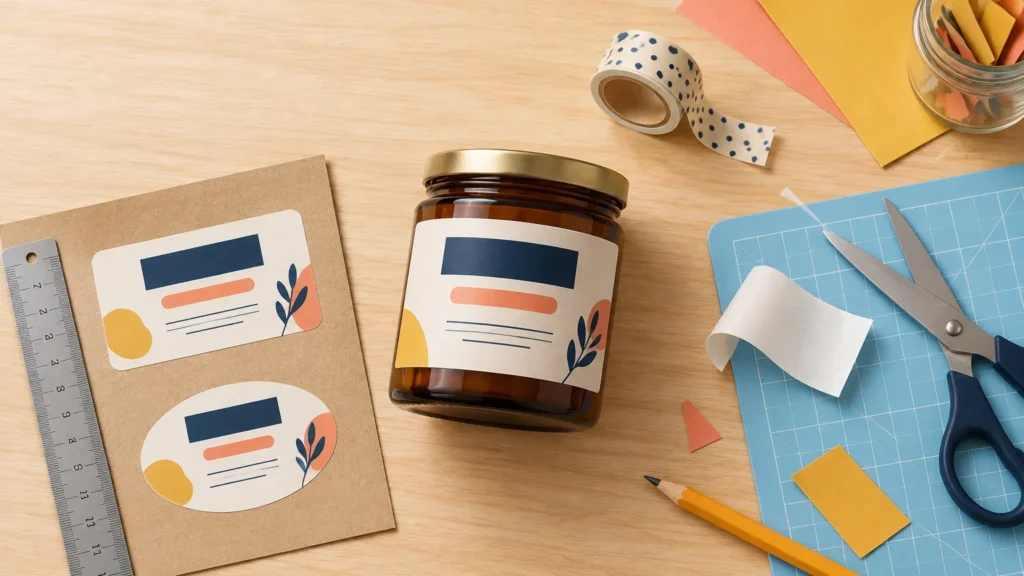
The easiest way to make pantry, spice, and storage labels look coordinated is to build a small system rather than forcing one label design onto every container. Choose two or three size tiers, keep the same type styles and information order, and adapt the shape to the usable space on each jar, bottle, lid, or bin.
That gives you the satisfying matched look without putting a tiny rectangle on a giant flour canister or squeezing “smoked paprika” into a circle meant for salt. The goal is visual consistency, not identical stickers.
The short version
- Gather and group the actual containers before designing anything.
- Measure the flat, usable label area rather than relying on container capacity.
- Create small, standard, and wide label tiers.
- Use one consistent hierarchy for the ingredient name and optional secondary details.
- Match the adhesive and finish to the container surface and cleaning routine.
- Print a proof at actual size and test it on each container family.
- Produce the complete set only after checking fit, readability, adhesion, and cutting.
Start with container families, not a list of ingredients
Pull the containers onto a table and sort them by physical shape. You might have straight-sided spice jars, rounded bottles, large canisters, narrow pour bottles, and plastic storage bins. Treat each group as a container family that can share a label format.
Now measure the usable area on each family. Ignore the container’s stated capacity; two containers holding the same volume can have very different curves, shoulders, handles, seams, and lid clearances. Label dimensions should come from the surface where the sticker will actually sit. The Avery guide to choosing label sizes recommends making a paper template for rounded or irregular containers, trimming it until it fits, and then measuring the flattened paper. A tapered container may require a slightly curved label rather than a standard rectangle.
A paper template is one of those wonderfully low-tech steps that can save an entire sheet of printable material. Tape the template in place and view it from normal shelf distance. Check whether the edges enter a curve, whether a lid covers part of the design, and whether you can read the longest ingredient name without picking up the container.
Build three practical size tiers
Most home systems do not need a unique label size for every jar. Start with three tiers and add another only when a real container demands it.
| Tier | Good candidates | Design adjustment |
|---|---|---|
| Small | Spice jars, small tins, narrow lids | Use the ingredient name only or keep secondary text extremely limited. |
| Standard | Everyday jars, bottles, medium canisters | Use the full hierarchy with a name and one optional detail. |
| Wide | Flour and sugar canisters, baskets, large bins | Allow longer names, a larger type size, or a category line. |
Rectangular front labels are the most forgiving choice for long pantry names. Circles work well on lids or for short identifiers, while wrap labels belong on straight-sided containers and should always be tested on the real object before you commit to a full batch. If you want to refine the tier system further, this guide to creating label sizes across small and large containers walks through the measuring logic.
Keep the hierarchy consistent
Your label system needs a few visual rules that remain stable even when dimensions change. The ingredient name should occupy the same level of importance everywhere. Category names, cooking notes, refill dates, or expiration details should remain secondary.
A simple hierarchy could look like this: a small uppercase category at the top, a large ingredient name in the center, and an optional date or variety at the bottom. A tiny spice label might drop the category and date, but “CUMIN” should still look like it belongs beside “BASMATI RICE” on a larger jar.
Keep a compact style sheet beside your design file. Record the typefaces, colors, capitalization rules, border thickness, corner style, and spacing. You can adapt line breaks, orientation, artwork crops, and secondary information while preserving those core elements across formats. For especially long names, prioritize clarity over perfectly matching font sizes; designing labels that stay readable on the package is more valuable than shrinking every word into submission.
Choose material for the surface and cleaning routine
Pretty typography cannot rescue the wrong adhesive. Smooth glass, metal, and many rigid plastics are generally friendly label surfaces, but curves, texture, moisture, and low-surface-energy plastics can make adhesion more difficult. Avery describes permanent labels as intended for strong, lasting adhesion on smooth glass, metal, plastic, cardboard, and paper. It also notes that its removable adhesive performs less reliably on curves, low-surface-energy plastics, and water- or scratch-resistant surfaces.
Use removable material when you expect to change the contents and the specific label is compatible with your container. Choose permanent adhesive for stable categories and frequently handled jars when long-term adhesion matters more than easy removal. In either case, clean and dry the exterior surface before applying the label, and test one container before labeling the whole pantry.
Be precise about moisture claims. Water-resistant and waterproof do not mean the same thing. Avery defines water-resistant material as suitable for splashing or spraying rather than submersion, and its guidance says print method can affect water performance. One of its polyester products is described as waterproof when printed with a laser or pigment-inkjet printer, while conventional dye-based ink can smear when wet. Match any durability expectation to the exact printable material, printer, and manufacturer instructions you are using.
Set up one master design file
Create one artboard, page, or canvas for each label tier. Place the shared color swatches, type styles, and spacing rules in the same file so you are not rebuilding the look from memory. Adobe Illustrator supports multiple custom-sized artboards that can be renamed, resized, duplicated, exported, and printed, making it practical to manage several label formats together. Adobe’s artboard documentation explains those controls.
Use clear names such as “Spice Small,” “Pantry Standard,” and “Bin Wide.” Then create a master label in each size before duplicating it for individual ingredients. This turns future additions into a five-minute update instead of an archaeological dig through mystery files named “labels-final-FINAL-2.”
Prepare home-printed labels carefully
Check compatibility before loading printable material. Cricut’s Printable Sticker Paper is intended for inkjet printers, and Cricut warns against putting it through a laser printer. The material uses permanent adhesive. Other products have their own printer and finish requirements, so follow the instructions for the exact package in your hand.
For Cricut Print Then Cut, print at high quality and disable scaling options such as “fit to page” or “shrink to fit,” which can change your carefully measured dimensions. Multilayer label artwork generally needs to be flattened into one printable layer; Cricut identifies using Attach instead of Flatten as a common reason individual letters or pieces receive separate cut lines. Cricut’s Print Then Cut instructions cover the setup and troubleshooting steps.
Material finish matters too. Cricut says Explore Air 2 and earlier machines require non-reflective matte white or transparent material for Print Then Cut. Dark, highly glossy, or holographic third-party materials can also affect scanning on compatible machines. Make a small test cut with the selected material before feeding your complete label sheet through the machine.
For a large matching set, consider whether you want to spend time printing, cutting, weeding, and applying every piece. The comparison of Cricut Print Then Cut and professionally printed stickers can help you choose a workflow. If you want finished pieces or materials prepared for a larger batch, CustomStickers custom labels and sticker materials are another practical production route.
Proof the system on the real containers
Print one page at actual size on ordinary paper before using sticker stock. Cut out representative labels and place them on the smallest, largest, roundest, and most awkward containers. A physical proof helps reveal lifting edges, uncomfortable curves, poor shelf-distance readability, and interference with lids.
Use your longest names during this test. “Tea” will make almost any template look successful; “confectioners’ sugar” and “everything bagel seasoning” are the labels that expose an inflexible design.
Final production checklist
- Every label fits within a genuinely usable surface area.
- The ingredient name remains the most visible information.
- Long names use planned line breaks rather than tiny type.
- Colors, borders, capitalization, and spacing follow the same rules.
- The adhesive suits the container surface and expected handling.
- The printable material is compatible with the printer.
- The cutting machine can read the chosen color and finish.
- Printer scaling is disabled and the proof prints at actual size.
- One finished label has passed a fit, adhesion, and readability check.
Make the first batch small and useful
Begin with one complete shelf or one container family—perhaps the spice jars or baking canisters. Build the three size tiers, apply representative labels, and live with them briefly before producing labels for every cupboard and storage bin.
Once the hierarchy, material, and dimensions work, save the master file and a short style sheet. You will then have more than an attractive row of jars: you will have a repeatable label system that can grow with your pantry without losing its coordinated look.
References
- How to Choose the Correct Label Size | Avery.com
- Avery Label Size Guide – Jars, Bottles, Tins | Avery | Avery.com
- How to Create Product Label Sizes That Scale Across Small and Large Containers – Wild Craft CC
- Difference Between Permanent, Removable & Repositionable Label Adhesive | Avery
- Blank Labels Water Resistant and Waterproof Materials | Avery
- Durable Waterproof Labels, 1.25" x 9.75", 40 Total 22845 | Avery
- Introduction to artboards in Illustrator | Illustrator
- Printable Sticker Paper – Help Center
- How to Print Then Cut in Design Space – Help Center
- How do I choose material settings? – Help Center
- How to Design Product Labels That Stay Readable on the Actual Package – Wild Craft CC